Step 1: Previous Configuration
Previous Configuration (Configuración Previa)
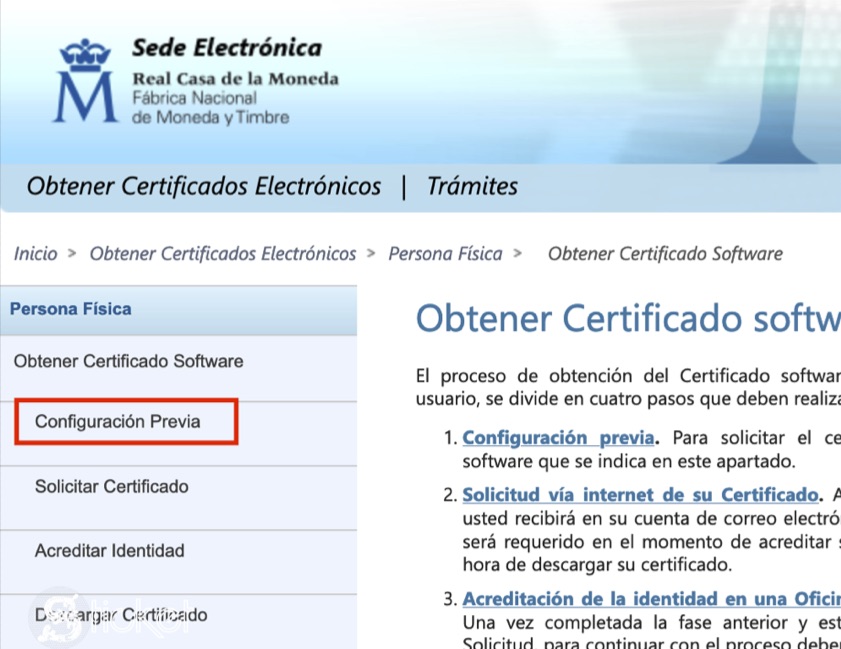
- Go to website Sede Electrónica: https://www.sede.fnmt.gob.es/inicio
- Choose Obtener Certificados Electrónicos/Persona Física/Obtener Certificado Software
- Choose Configuración Previa
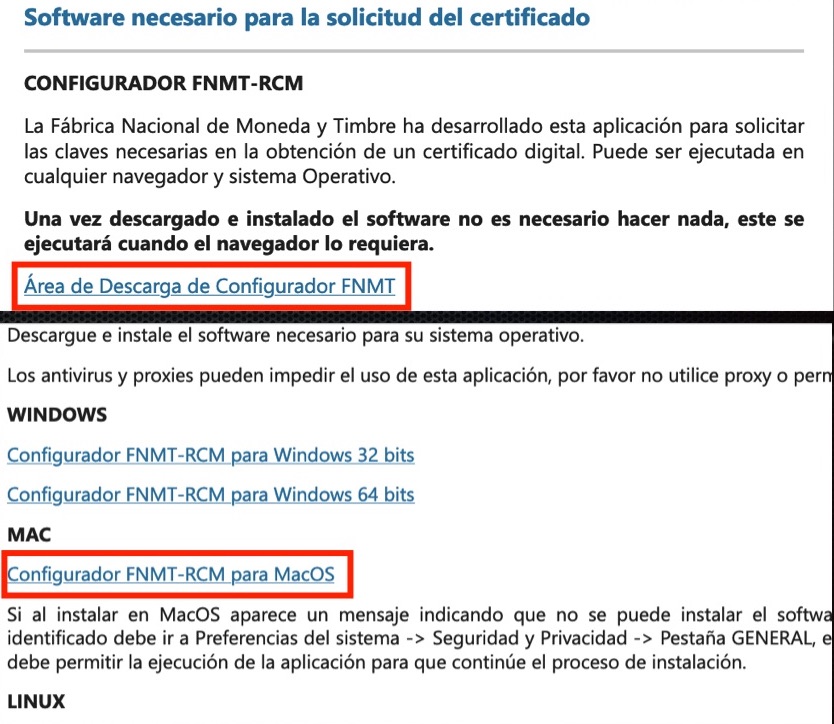
- Scroll down, click on “Área de Descarga de Configurador FNMT"
- Download Configurador FNMT version that suitable with your OS: Windows, Linux, Mac (See MacOS Tips)
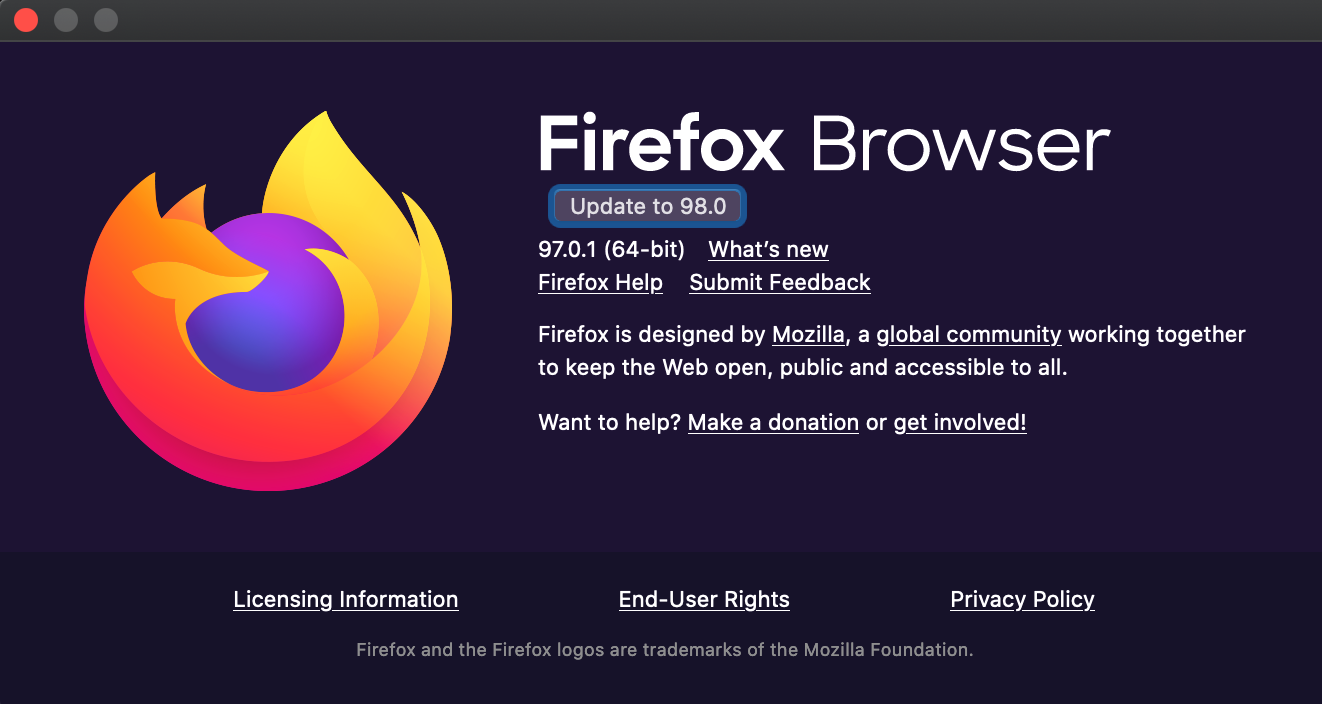
- Browser: update newest version (Chrome, Firefox,...) before downloading Configurador FNMT
- Experience: Doesn’t work with Safari (on Catalina)
- Recomendation: Firefox, v97.0.1 (update on Feb 2022)
- Open Firefox, on the left navbar, click Firefox/About Firefox to check version
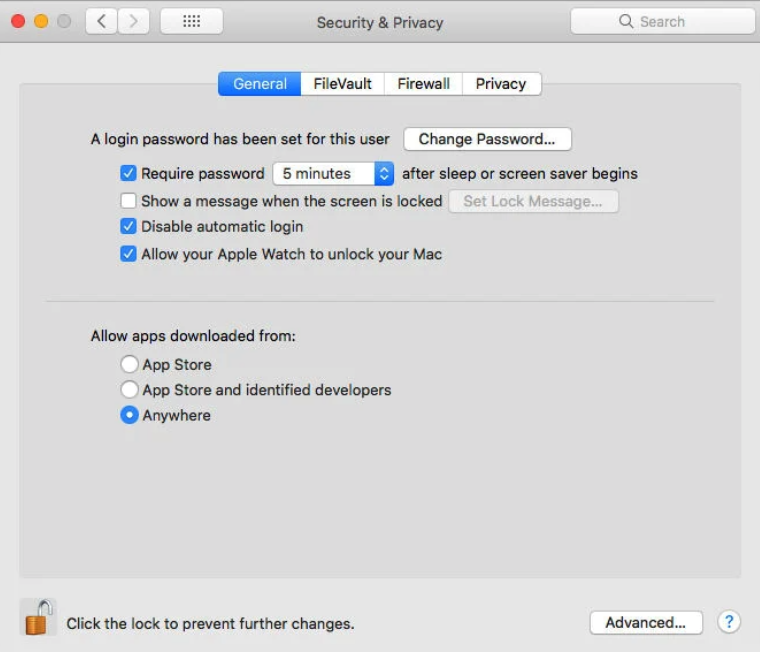
- Before installing Configurador FNMT-RCM para MacOS: Go to System Preferences/Security & Privacy, allow the app be installed by choosing “Anywhere” option
- Open Terminal and enter “sudo spctl –master-disable” to get this option back (to Open Terminal, press Command + Space, type Terminal)
- After that, press Return, and you will be asked to enter your password
- Once that’s done, reopen the System Preferences and head to the Security & Privacy section again
- Now you will see the third option here
- You’ll have to click the padlock icon to make changes to the settings on this page
- And there you go, now you can install and open apps from any source